
Realtime Sky Builder
Skies, clouds and weather you can direct shot by shot.
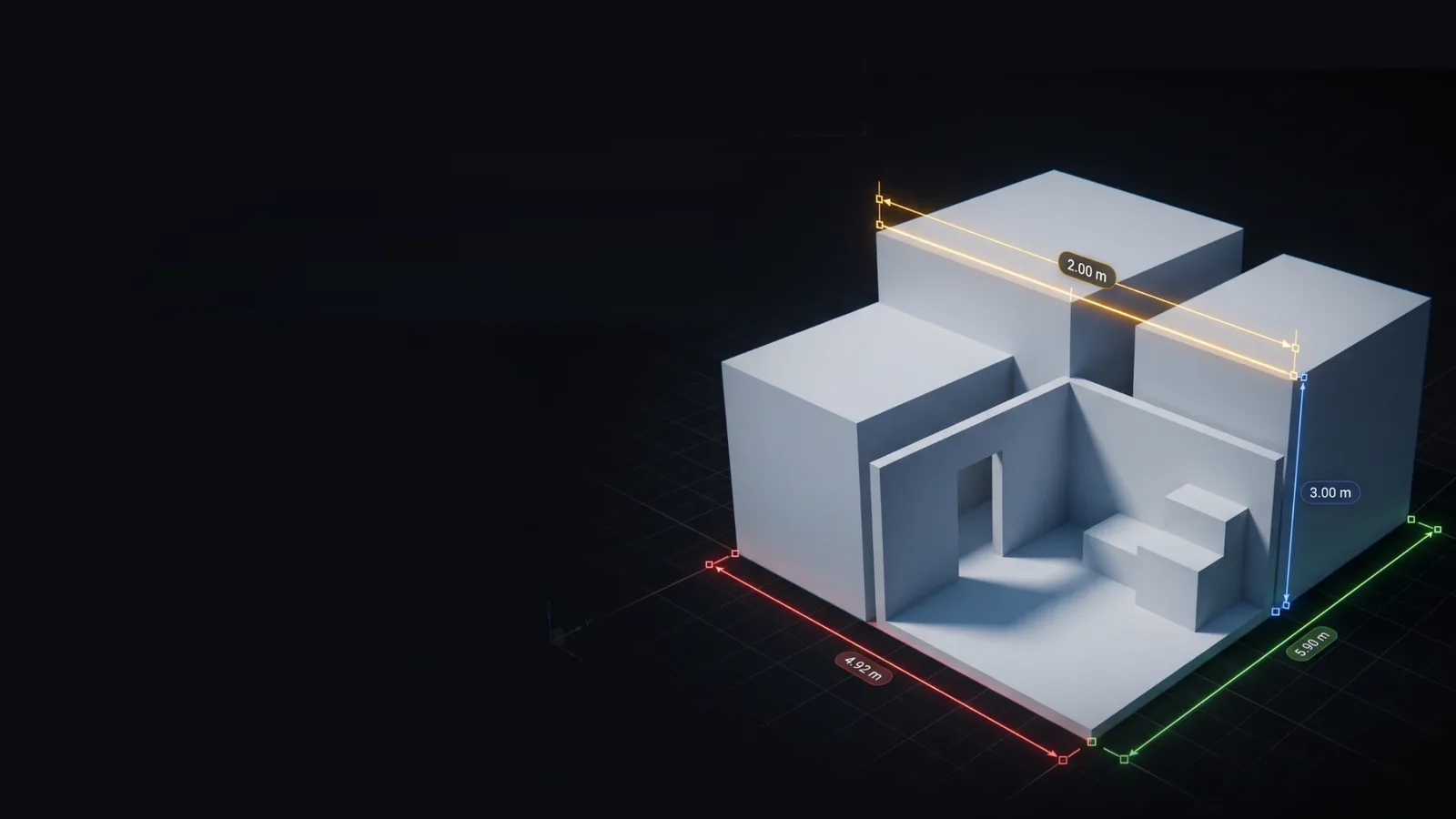
Fast, precise measuring in the Unreal Editor
Snap Measure is a fast, precise measuring tool for the Unreal Editor, built for level design, architecture, product visualisation and techvis.
Need more than one measure? Snap Measure Toolkit adds paths, areas, angles, height marks, camera frustums, notes and grids.
No. Measures are editor annotations and are never cooked into a packaged build. They appear in Play / Simulate and in Movie Render Queue / Sequencer renders only when Show in Renders is on (it's on by default). Turn it off on a measure to keep it editor-only.
Vertex and edge snapping works on static meshes, instanced meshes and foliage, including Nanite. Skeletal meshes, landscape, BSP and spline meshes snap to their surface only. Hold Ctrl to always snap to the nearest vertex, or Alt to place the point freely.
Hold Shift while placing or dragging a point to lock it to the world X, Y or Z axis. If the point snaps to geometry or to another measure's end, it's projected onto that axis, so you can copy a height or length. To see the X, Y and Z parts of an existing measure, turn on Split Axis in its Details.
Yes. Right-click an end point's handle and choose Attach Point to Selected Actor, or set it in Details > Attach, where you can also pick a socket or bone. The point then follows the actor in the editor, in Sequencer, in Play and in renders. If the actor is deleted or its level unloaded, the point turns red and stays where it was until the actor comes back.
Skies, clouds and weather you can direct shot by shot.
Real places as true-scale Unreal landscapes, without leaving the editor.
Eight measuring and annotation tools that show up in your renders.
One email when something new ships. Nothing else.
Signups open soon.
You can unsubscribe at any time. We only use your email to send these updates.

